
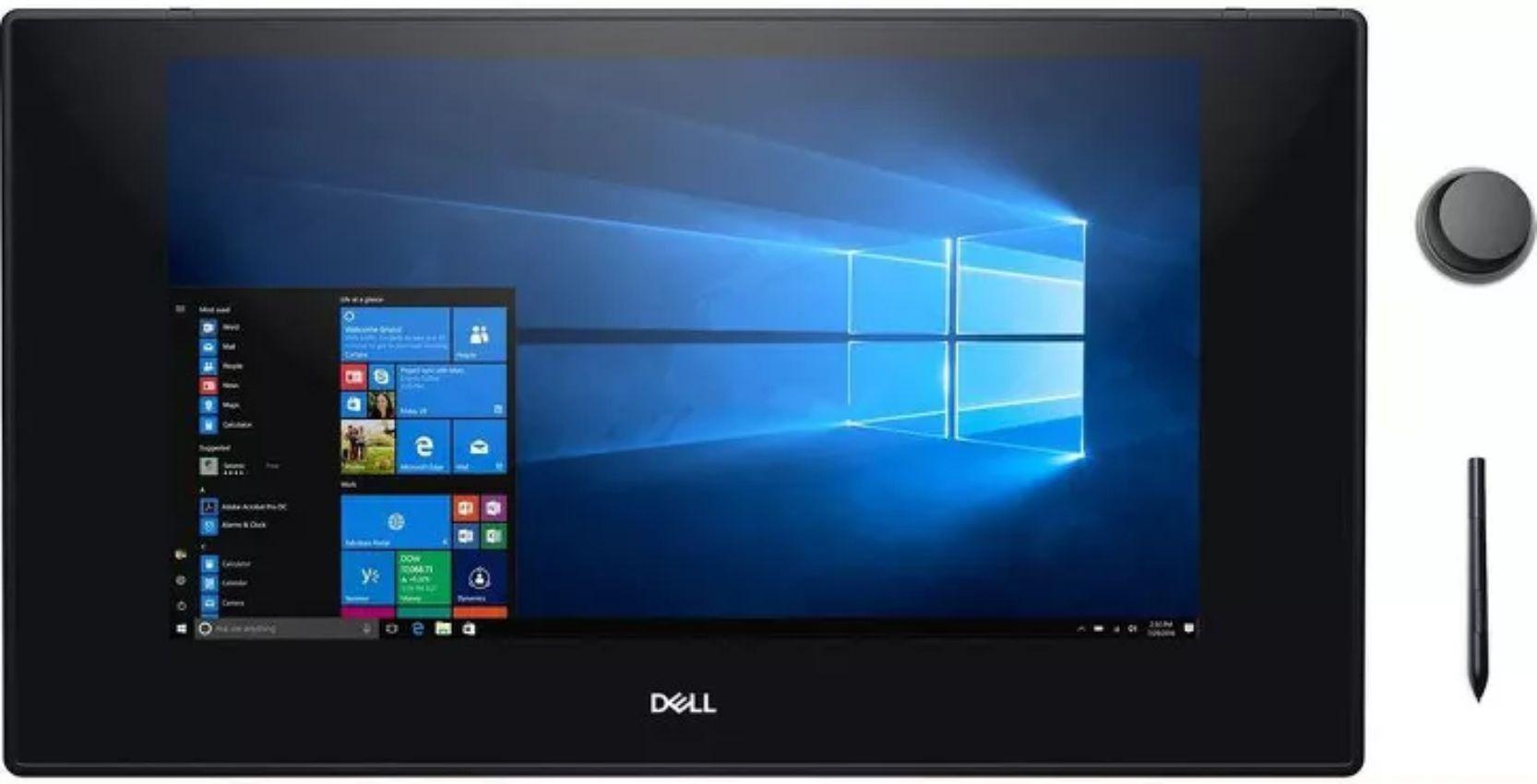
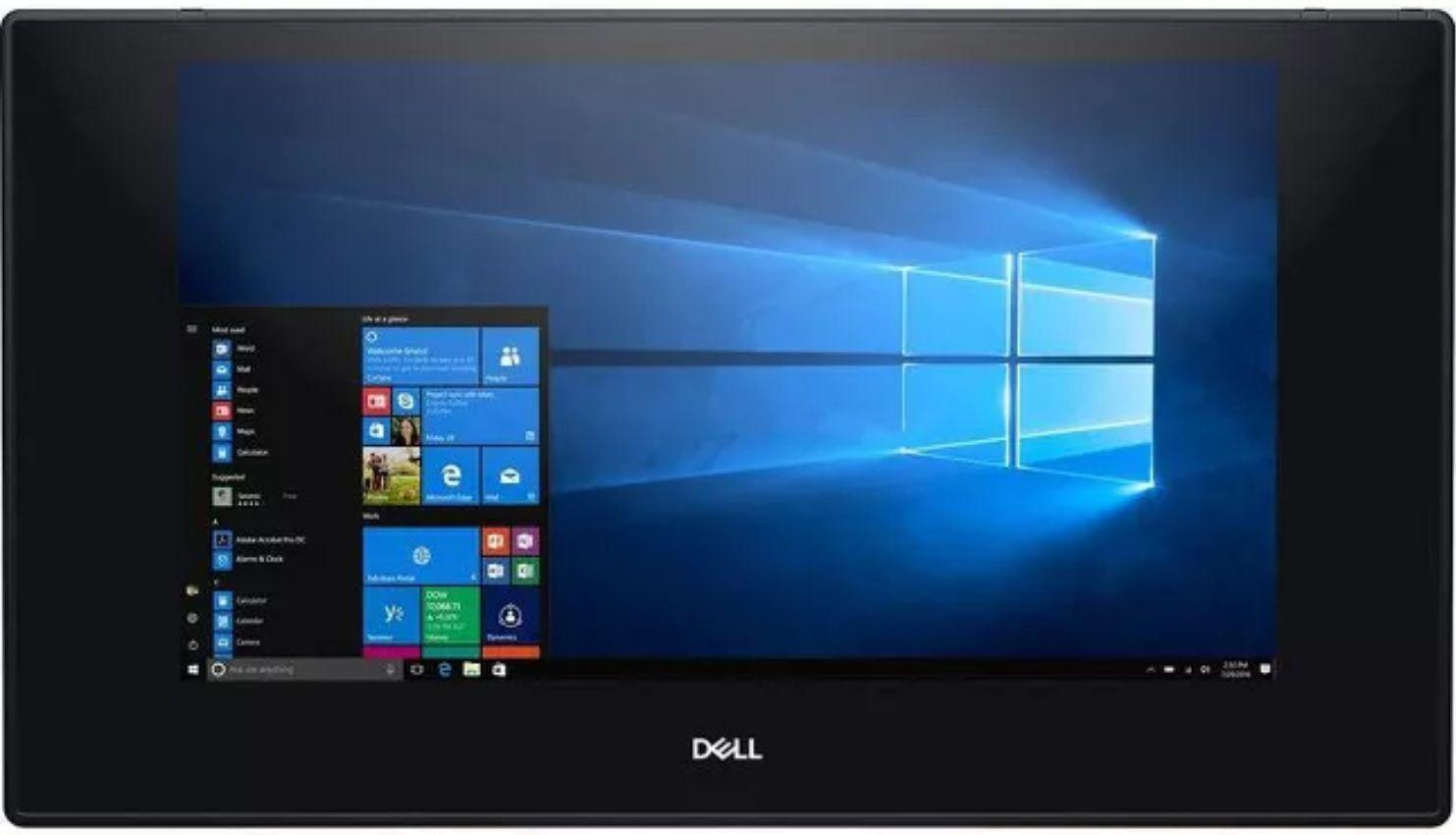
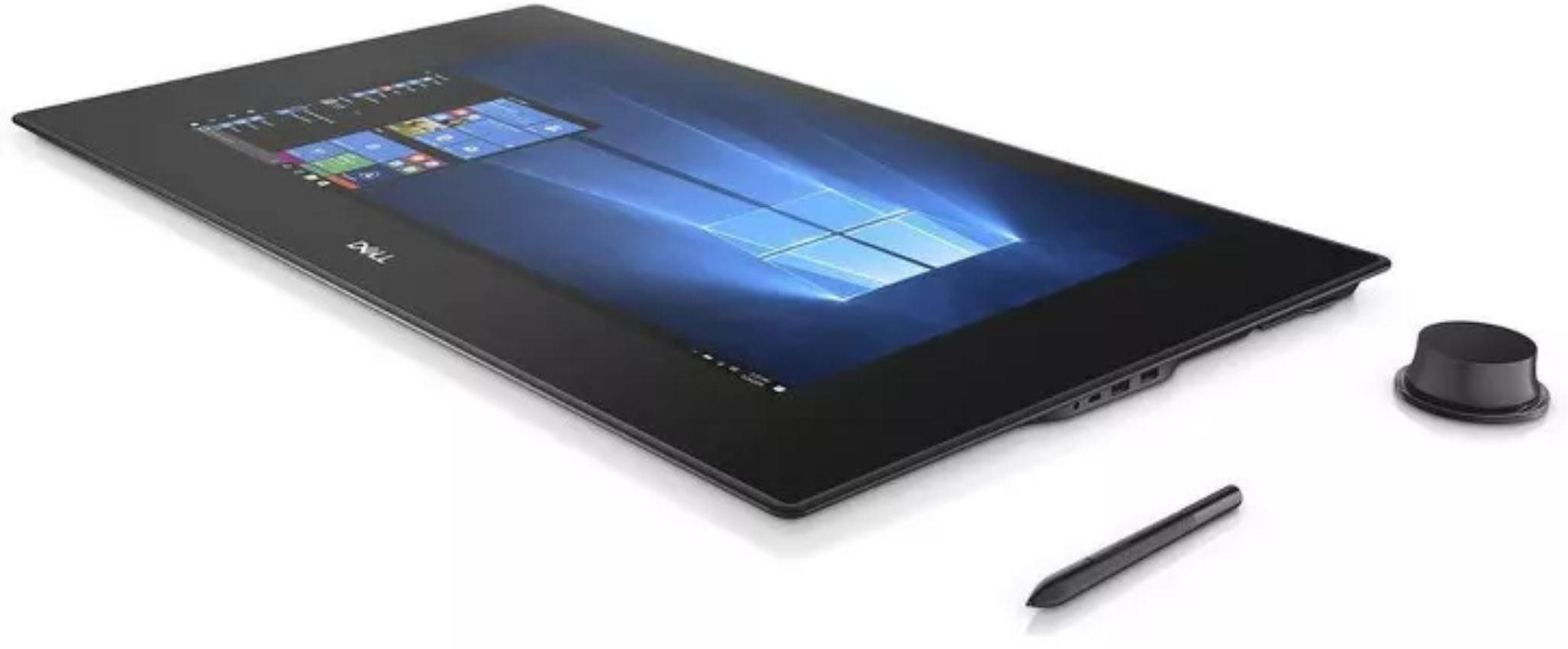
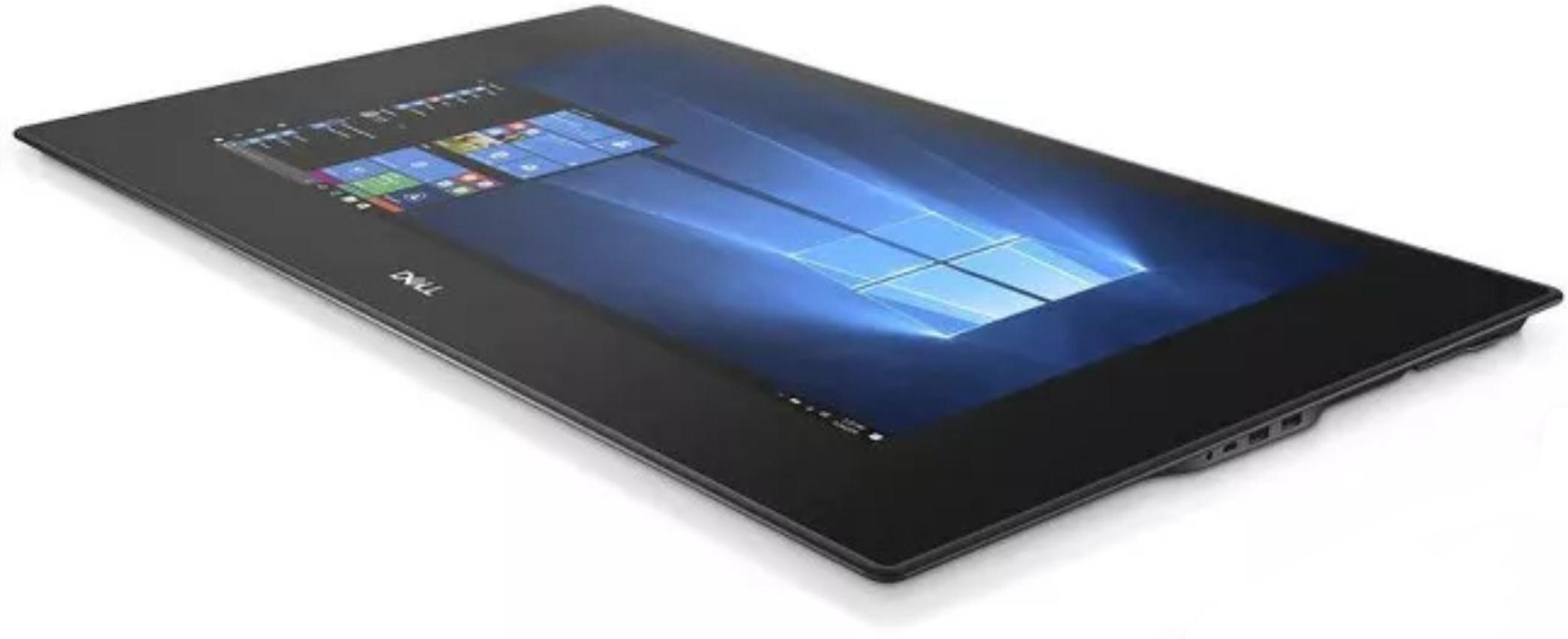
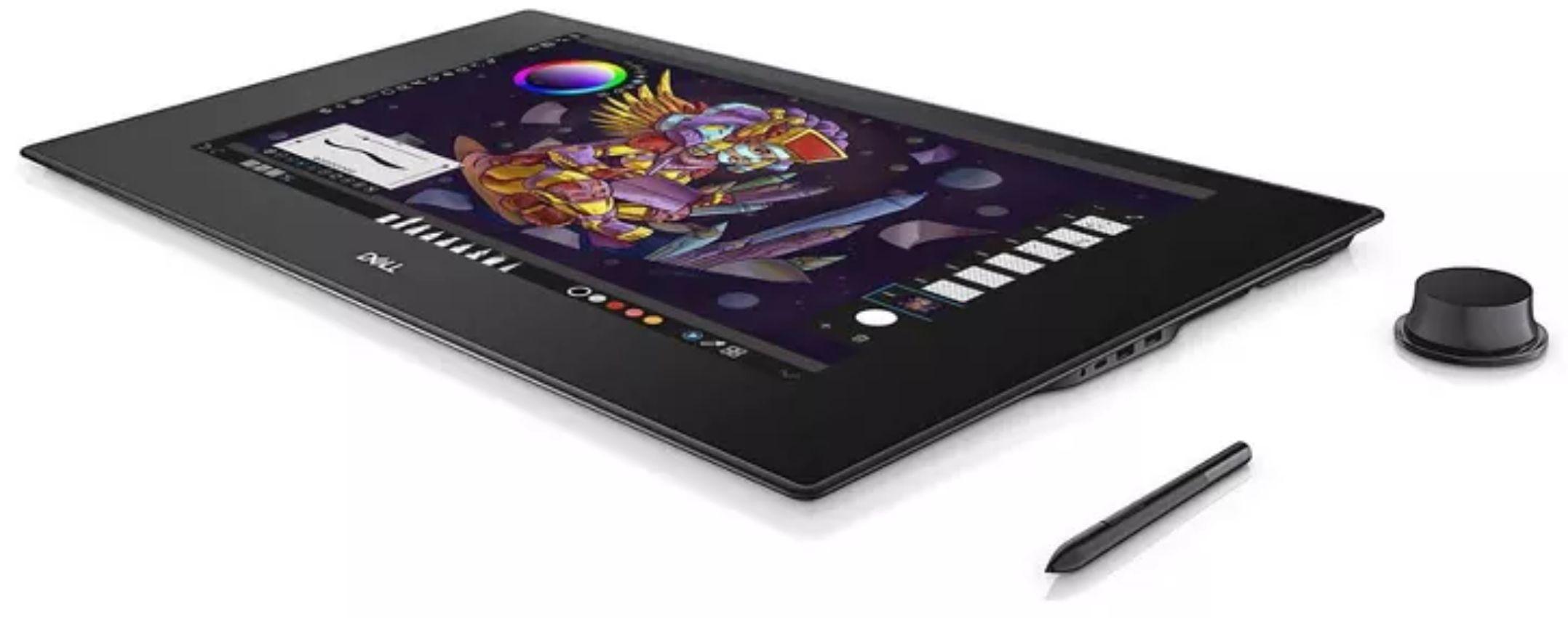
Dell KV2718D Canvas Monitor 27"

Entrega GRATUITA
Dell KV2718D Canvas Monitor 27"
Entrega GRATUITA
Inclui:
Cabo de carregamento
Adaptador de corrente
- Product Name
- Dell KV2718D Canvas Monitor (27-inch)
- Brand
- Dell
- Product Series
- Canvas Monitor
- Model Number
- KV2718D
- Screen type
- Active matrix - TFT LCD
- Panel Type
- In-plane switching Technology
- Aspect ratio
- 16:9
- Viewable image dimensions
- Diagonal 68.47 cm (27 inches)
- Pixel pitch
- 0.2331 mm x 0.2331 mm
- Viewing angle
- Horizontal 178° (typical) / Vertical 178° (typical)
- Brightness
- 270 cd/m² (typical)
- Contrast ratio
- 1000 to 1 (typical)
- Dynamic contrast ratio
- 8,000,000:1
- Backlight
- White LED, EDGELIGHT system
- Response Time
- 14 ms typical (G to G)
- Color depth
- 1.07 Billion colors, 10 Bit
- Color gamut
- AdobeRGB | sRGB | Rec709 | DCI-P3 | 109% CIE1931 | 124% CIE1976
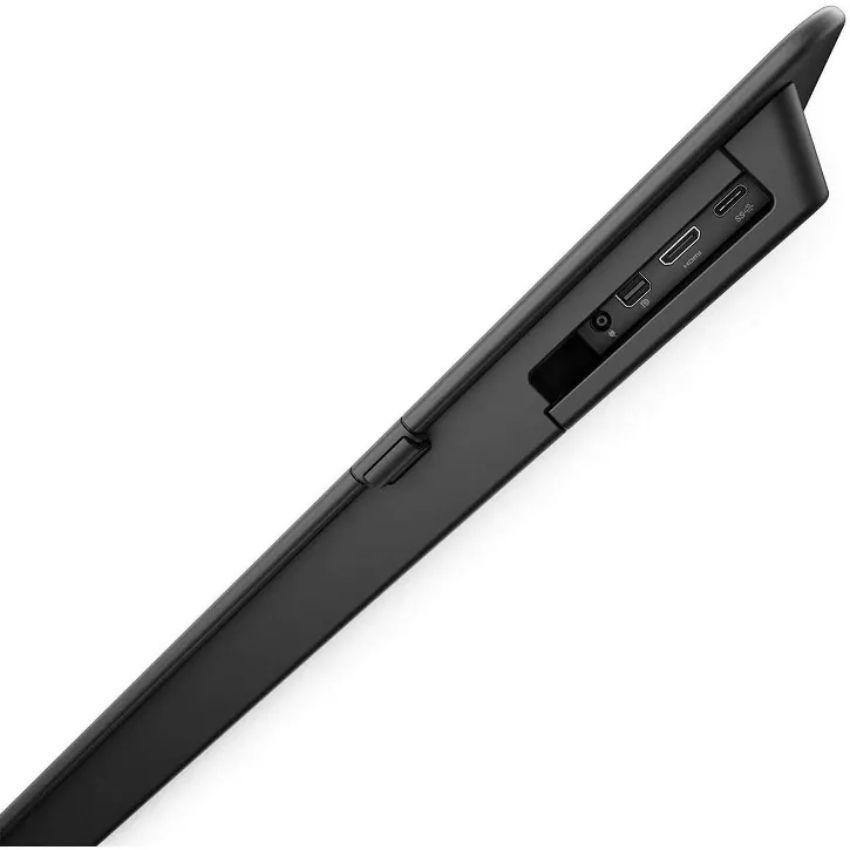
- Host connectivity
- 1 x USB Type-C upstream port (support DP Alt mode) | 1 x mDP | 1 x mini HDMI
- Downstream connectivity
- 1 x Audio jack | 1 x USB 3.0 Type-C downstream port | 2 x USB 3.0 Type-A downstream port
- Cable management
- Yes
- Active Area
- 1 mm larger than Display AA on each side
- Resolution
- 0.01 mm (2540 ppi)
- Coordinate Accuracy
- ±0.4 mm (see Note 1 and 2)
- Coordinate Deviation When Tilting
- Pen ±0.3 mm (tilted ±50°from vertical) (see Note 3)
- Detectable Pen tilt
- up to 50°from vertical
- Detectable Height
- 4 to 10 mm above the sensor film (see Note 1)
- Position Report Rate
- 133 pps
- Pressure Resolution
- 1024 levels @ full scale (Note 4)
- Note 1
- The Pen Digitizer Unit and pen only, at ordinary temperature.
- Note 2
- The pen held vertically at 7 mm high from sensor film.
- Note 3
- The pen held in the center of the active area.
- Note 4
- UP pen only
- Type
- Projected Capacitive System
- Panel Diagonal
- 27 inch
- Horizontal
- 598.74 mm (23.57 inches)
- Vertical
- 337.66 mm (13.29 inches)
- Area
- 202170.5 mm2 (313.36 inches2)
- Input Method
- Dell Canvas pen, bare finger and totem
- Touch point
- 20 touch-points
- Touch response time
- 35 ms
- Touch method
- Single and multi finger
- Operating system
- Windows 10 Creators Update
Dell KV2718D Canvas Monitor 27"
Entrega GRATUITA
Descrição do produto
FEATURES:
• Thin film transistor (TFT), liquid crystal display (LCD), and LED backlight.
• 68.47 cm (27-inch) active area display (measured diagonally) 2560 x 1440 (16:9 aspect ratio) resolution, plus full-screen support for lower resolutions.
• mini HDMI, USB Type-C and mini DP connector ports.
• Optional Video Electronics Standards Association (VESA) mounting bracket and Stand.
• Plug-and-play when paired with a host system powered by the Windows 10 Creators (Version 1703) or higher update.
• Optimize eye comfort with a flicker-free screen.
• The possible long-term effects of blue light emission from the display may cause damage to the eyes, including eye fatigue or digital eye strain. ComfortView feature is designed to reduce the amount of blue light emitted from the display to optimize eye comfort. Select “ComfortView” preset mode by OSD menu to enable this feature.
• On-Screen Display (OSD) touch adjustments for easy set-up and screen optimization.
• Asset management capability.
• Energy Gauge shows the energy level being consumed by the Dell Canvas 27 in real time.
• 0.5 W standby power when in sleep mode
Recondicionados premium.
Qualidade de confiança.
4,7de /5
com base em 70 000 avaliações
Trustpilot

Poupa até 70%
Garantia de 12 meses
Qualidade testada por especialistas
30 dias de experiência sem risco
Poupa até 90% de CO2 face ao novo
 Inglês


© Reebelo Portugal | 106 823 123 | VAT Registered
Free Shipping to Portugal30-Day Returns in Portugal
Pagamentos 100% seguros


